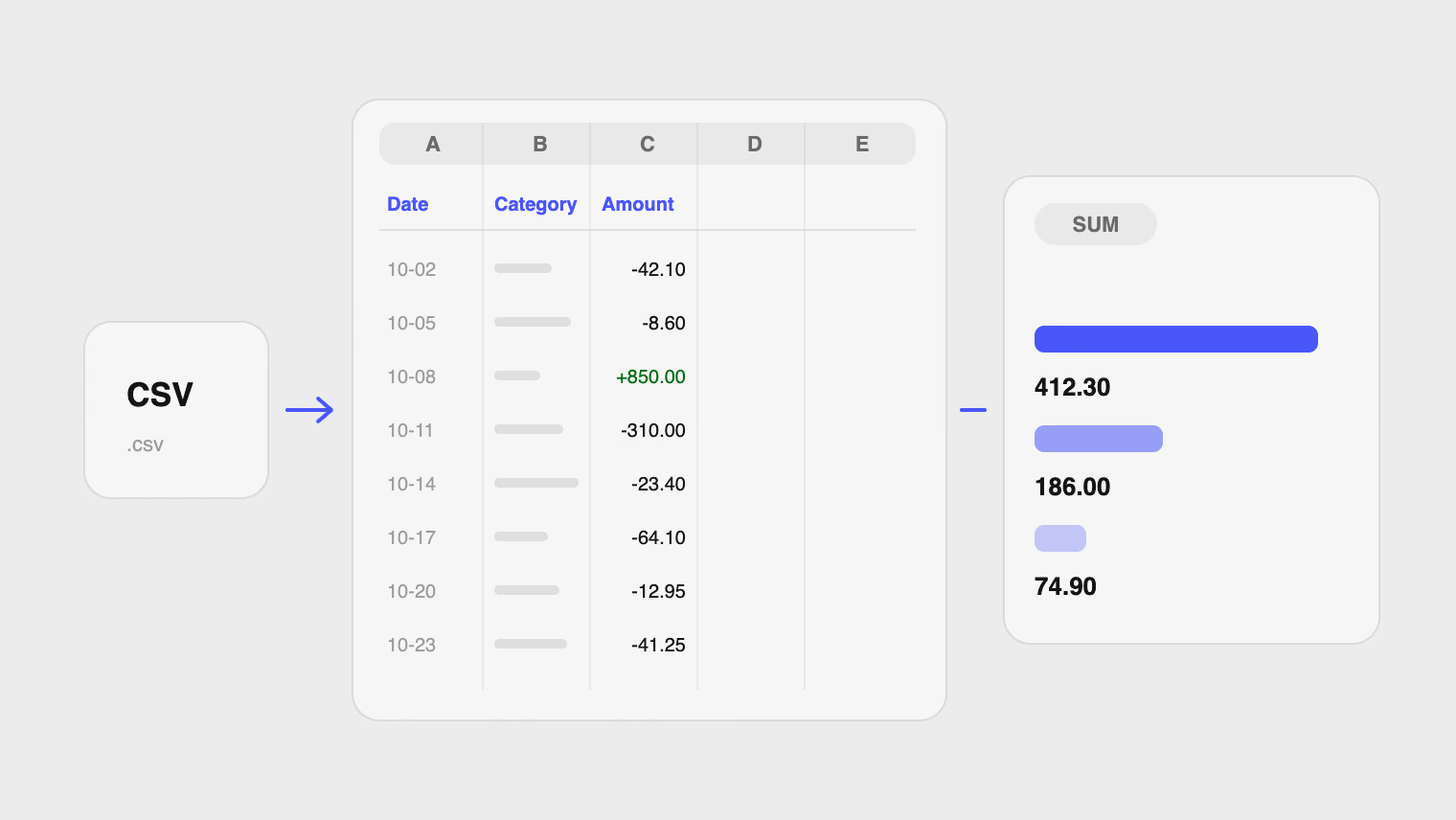
The short answer
Google Sheets cannot open a PDF statement. The route is a CSV: take one from your bank if it offers one, or make one from the PDF with Pulget. Then open a spreadsheet, choose File > Import, and pick where the rows go. For totals, use Insert > Pivot table with Category as rows and Amount as values, or a SUMIFS formula for one category and one month. If your accounts use different currencies, sum Reporting amount instead of Amount.
If your bank gives a CSV
You may not need Pulget at all. Download the CSV (or XLSX) from your bank's site and import it into Sheets as it is. Check three things before you build anything on it:
- Money out and money in are separate columns or one signed column. Know which, because it changes your formulas.
- Dates are real dates, not text. Click a cell and see whether Sheets right-aligns it.
- Amounts are numbers. A CSV with a dot as decimal separator, opened in a spreadsheet set to a locale that uses a comma, can read amounts as text. Select the Amount column and check that the sum appears.
Pulget helps when the bank gives only a PDF (scans too), when statements come from several banks with different layouts, or when you want merchant names and categories done for you.
If you only have a PDF
Pulget reads files you download. It does not write to Google Sheets or keep a sheet updated, and it never connects to a bank.
- Create an account in Pulget for the bank account, in its currency.
- Upload the statement. PDF, scanned PDF, CSV, XLS, XLSX and DOCX work; photos do not.
- In the import's review step, check the extracted rows, correct any read wrongly, and approve.
- Open the Transactions page, set the filters you want (for example one month across all accounts), and choose Export CSV from the overflow menu. To export one account, use that account's menu instead.
The file is UTF-8 CSV with the date as YYYY-MM-DD and Amount signed, money out negative, with a dot decimal. Category is the English category label. Converting bank statements to a clean CSV lists every column. For other ways to read a PDF into a spreadsheet, see four PDF-to-spreadsheet methods compared.
Import the file into Sheets
These are the labels from Google's import help. The file cannot be password protected.
- Open a spreadsheet and choose File > Import.
- Choose the CSV file.
- Under import location, pick one of: "Create new spreadsheet", "Insert new sheets", "Replace spreadsheet", "Replace current sheet", "Append rows to current sheet" or "Replace data starting at selected cell".
- For a CSV, set "Separator character" to "Detect automatically", "Tab", "Comma" or "Custom". Comma is right for the Pulget file.
- Choose Import.
Last checked on 18 November 2026 against Google's import help page.
Which location? Use "Insert new sheets" for each new month's file. It keeps the raw data apart from your summary, and an old month is never touched. Use "Append rows to current sheet" if you want one growing table. Appending the same month twice doubles it, so note which months you have added.
Total spending by category and month
Say the sheet has Date in column A, Category in column B and Amount in column C. There are two ways to total it.
A pivot table. Select the data, choose Insert > Pivot table, set Category as rows and Amount as values, summarized by SUM. If you import each month as its own sheet, build one pivot table per sheet. For one table that spans several months, the formula below splits it by month.
A formula. To total groceries for October 2026:
=SUMIFS(C:C, B:B, "Groceries", A:A, ">="&DATE(2026,10,1), A:A, "<"&DATE(2026,11,1))
The result is negative, because money out is negative. Put a minus sign in front of the formula if you want spending as a positive number. Copy the formula down a list of category names to get a whole month.
These are the columns worth using:
| Column | Use it for |
|---|---|
| Date | Month filters in SUMIFS or the pivot table |
| Category | Rows of the pivot table or the criterion in SUMIFS |
| Amount | Totals for a single currency |
| Reporting amount | Totals across accounts in different currencies |
| Merchant | Cleaned names, for checking what sits inside a category |
| Document | The source file of each row, handy when a shared sheet is queried |
Several currencies in one sheet
Adding euros to lira gives a number that means nothing. Pulget keeps each account in its own currency and exports a Reporting amount column: every row converted into one reporting currency at the published rate for its date, or the closest earlier one. The cell is blank until a rate exists, so check for blanks before you total. You can enter your own rate on a transaction in Pulget first. Then point the pivot table, or the SUMIFS, at Reporting amount.
The multi-currency guide covers where the rates come from.
Keep transfers out of your totals
Moving money between your own accounts looks like spending on one statement and income on the other. In Pulget, pairs with the same amount in the same currency are suggested as transfers in the Review inbox, and you confirm them. A transfer that changes currency is grouped by hand on the Transactions page.
The Transactions page export is the ledger. A grouped transfer, refund or settlement is one row with its net amount, so a monthly pivot does not count your own transfers as spending. Combining statements without counting money twice works through a whole month. If the sheet is going to an accountant, what to send covers that.
The Document column names the source file of each row. In Pulget, each transaction also opens its source file, and for a PDF the page it came from.
What this does not do
- It does not write to Google Sheets or refresh a sheet. To update it, export and import again.
- It exports CSV only.
- It is web only, in desktop and mobile browsers.
Start with one month
Upload one statement, free during preview with no card, approve its rows, export the CSV and import it into a new sheet. See pricing for what applies after preview.
Sources
Related reading
About the author
Hikmat Samadov, Founder. Hikmat builds Pulget, a spending tracker that reads the bank statements you upload instead of connecting to your bank.