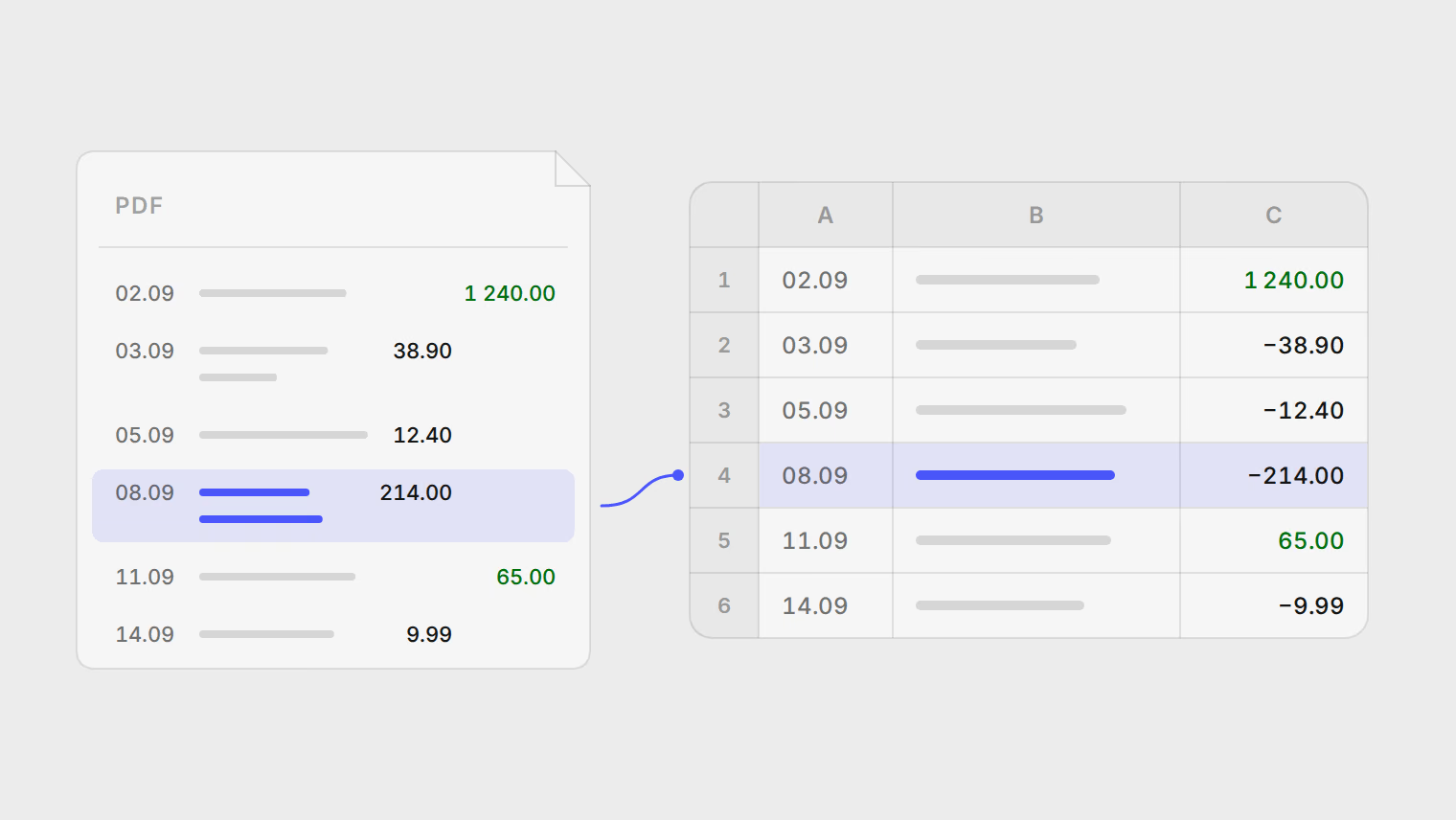
The short answer
First check whether your bank offers a spreadsheet export. Most banking apps and websites give you CSV or XLSX next to the PDF, and that file needs no conversion.
If the PDF is all you have, there are four ways to get it into Excel:
- Excel's own PDF connector, the best free option for a statement with selectable text.
- Copy and paste, for a page or two.
- Data from Picture in Excel for Microsoft 365, for a scanned page.
- An extractor that shows you each row to confirm before you use it.
Whichever you choose, check the result against the statement's own totals. A tidy conversion can still have dropped or merged a row, and nothing in the spreadsheet will tell you.
Check for a spreadsheet export first
A PDF is made for printing. Its numbers are text placed on a page, so every method below has to work out which text belongs to which row and column. A CSV or XLSX file from the bank skips that step.
Look near the statement download in your banking app or online banking, or under an "export" or "download transactions" option. Some banks offer it only on the website, not in the app. For two common multi-currency accounts, see how to export a Revolut statement and how to export a Wise statement.
Option 1: Excel's PDF connector
Excel reads tables out of a PDF through Power Query. Microsoft's instructions are:
- Select Data > Get Data > From File > From PDF.
- Select the statement and then Open.
- The Navigator lists the tables it found. Select the one with your transactions.
- Select Load to put it straight into a sheet, or Transform Data to clean it in Power Query first.
Microsoft lists Excel for Microsoft 365 on Windows and Mac, and Excel 2016 to 2024, for this feature. The connector needs .NET Framework 4.5 or later; that is what a message about additional components means.
What helps with statements:
- Tables across pages. The connector combines similar tables on consecutive pages into one by default. A statement that repeats its column headers on every page usually comes out as one table; check for header rows repeated in the middle.
- Several tables per page. A summary box and a transactions table are listed separately in the Navigator; pick the transactions.
- Multi-line descriptions. Microsoft's documentation says multi-line rows that are not identified properly can be cleaned up in Power Query, for example by filling values down or grouping adjacent rows. In practice, a description that wraps onto a second line often becomes a second row with no date and no amount.
For a statement, choose Transform Data rather than Load. Power Query lets you remove the extra header rows, set each column's type, and repeat the same steps next month on a new file.
Option 2: copy and paste
For one page, pasting text from a PDF reader into Excel can be quickest. Often each line lands in a single cell. Data > Text to Columns can split it, but only if the columns are separated consistently, and descriptions with spaces rarely are.
Copy and paste is the method most likely to lose a row silently, because nothing marks where a page ended.
Option 3: Data from Picture, for scans
A scanned statement is a picture of a page, with no text to select or connect to. Excel for Microsoft 365 has a Data from Picture feature that reads a table from an image:
- Select Data > From Picture, then Picture From File, or take a screenshot of the page and use Picture From Clipboard.
- Excel analyzes the image and shows the result.
- Correct anything it misread, then select Insert Data.
It works from a picture, not a PDF, so a scan is a page-by-page job: capture each page as an image, crop it to the table, and insert it. On Windows it needs Windows 10 version 1903 or later, or Windows 11. Microsoft lists the character sets it supports, among them English, German, French, Spanish, Polish and Turkish; a language outside that list is not supported.
Option 4: an extractor you review row by row
Here a tool builds the rows and shows them to you before you rely on them. The review is the point: you confirm each row against the statement, rather than finding a missing payment months later.
Pulget works this way. You upload the PDF (scanned pages are read with OCR), DOCX, CSV, XLS or XLSX file, check the extracted rows, and approve them. When the statement prints a running balance, the review flags rows that do not line up with it, and any amount no row accounts for. Then export the reviewed transactions as CSV and open the file in Excel. Converting bank statements to a clean CSV lists the columns and explains which export matches the statement line by line.
For a single file it is slower than a free converter: you sign in, and you review before you export. It pays off when you convert statements every month, from several banks, or when the result has to be right, as with bank statements for your accountant.
The export is CSV, not XLSX. Amounts use a dot as the decimal separator, so if your Excel uses a comma, open it with Data > From Text/CSV and check how each column is read before you load it. Plans and file limits are on the pricing page.
Compare the four
| Method | Scanned pages | Many pages | Repeat next month | What you check |
|---|---|---|---|---|
| Excel PDF connector | No text to read | Yes, tables are combined | Yes, refresh the query | Header rows, wrapped lines |
| Copy and paste | No | Page by page | No | Every row |
| Data from Picture | Yes, one image each | Page by page | No | Every value it flags |
| Extractor with review | Yes, with OCR | Yes | Yes, upload the next file | Each row, before approving |
Pitfalls to look for, whichever method you use
- Wrapped descriptions. A long merchant name or transfer reference runs onto a second line and becomes a separate row, or merges into the row below.
- Debit and credit in separate columns. Many statements print money out and money in as two unsigned columns. Combine them into one signed amount (money out negative) before you add anything up, or every total mixes the two.
- The running balance read as the amount. A balance printed after every row puts two amounts on each line. Sum the transaction column, not the balance.
- Carried-forward lines. Remove "Balance brought forward" and page subtotals; they look like transactions.
- Dates and number formats. 03/04 is the 3rd of April in one country and the 4th of March in another. 1.234,56 and 1,234.56 are the same number written two ways. Set each column's type yourself instead of letting Excel guess.
- Signs written as text. Some banks print "CR" and "DR", or a minus sign after the number. Convert these before the column becomes a number.
Check the result against the statement
Three checks catch most errors in a few minutes:
- Count. Compare the number of rows with the statement. Use its count of transactions if it prints one; otherwise count one page by hand.
- Reconcile. Opening balance plus money in minus money out should equal the closing balance on the statement. If it does not, the difference is often exactly one missing or doubled row.
- Spot-check. Compare five random rows, including the largest, with the statement.
The same checks apply to a chatbot's output; analyzing a bank statement with AI shows what goes wrong there.
Last checked on 21 October 2026 against Microsoft's Power Query, PDF connector and Data from Picture documentation.
Sources
Related reading
- Analyze a bank statement with AI: what a chatbot gets wrong, and what to use instead
- Bank statements for your accountant: one categorized CSV, traceable to every page
- How to export a Revolut statement (PDF, Excel or CSV) and analyze it
- Convert bank statements to a clean CSV
- Track spending without connecting your bank account
About the author
Hikmat Samadov, Founder. Hikmat builds Pulget, a spending tracker that reads the bank statements you upload instead of connecting to your bank.