The short answer
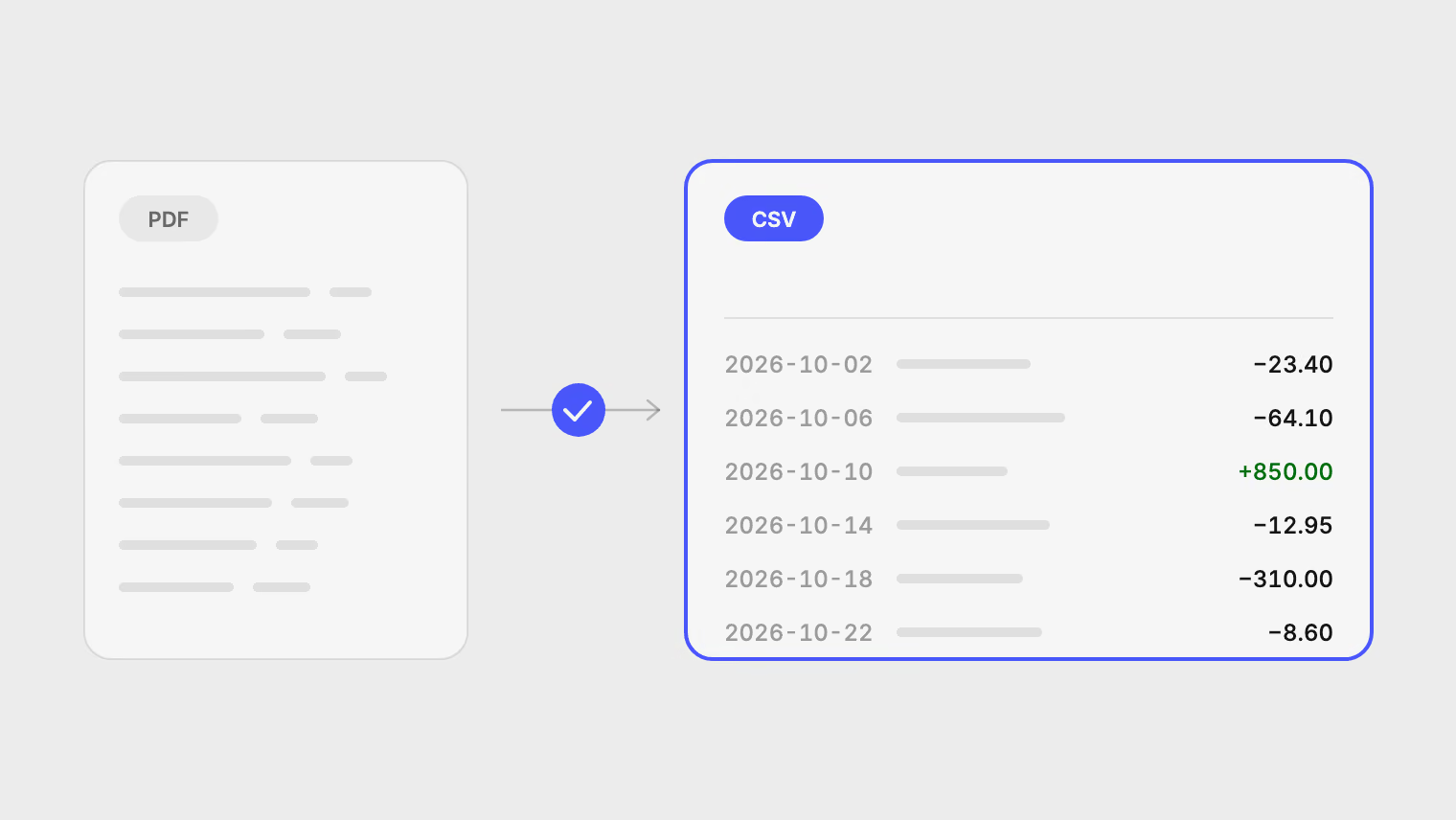
Actual Budget does not import PDF. Its import docs list CSV, QIF, OFX, QFX and CAMT, and recommend OFX or QFX when your bank offers them. If your bank gives you only a PDF, you need a CSV in between. Pulget reads the PDF (scans too), lets you check every row, and exports a CSV for one account. Actual's CSV importer then maps its columns directly: the dates are ISO, and the amounts are already signed.
Why a PDF does not go in
A PDF lays text out on a page. It has no fields for date, payee or amount, and a scanned one has no text at all, so a budgeting tool has nothing to map. Actual's import page names the formats it takes and does not mention PDF.
Many banks do offer OFX, QFX or CSV. If yours does, use that file, since it is the shortest route. This article is for when the bank gives you only a PDF, when older months exist only as PDFs, or when you scanned a paper statement.
Actual also offers bank sync in some regions, through SimpleFIN, GoCardless and Pluggy.ai. That is a separate route, and this article does not cover it. Here you import files you already hold, and nothing logs in to a bank.
Last checked on 18 November 2026 against Actual's importing and multi-currency documentation.
Option A: by hand or with a script
You can copy the rows out of the PDF into a spreadsheet and save a CSV. It works for one short statement and gets tedious fast. Columns break across lines, and negative amounts are easy to mistype.
Community scripts exist for specific banks and layouts. They are fine if your bank is covered and you are comfortable running code. When the layout changes, or the statement is a scan, they tend to stop working.
Option B: read the PDF with Pulget
Pulget works from files the bank gives you. It does not connect to your bank or ask for a login.
- Create an account in Pulget for the bank account you want in Actual, in that account's currency.
- Upload the statement to that account. PDF, CSV, XLS, XLSX and DOCX work, and scanned PDFs are read with OCR. Photos and screenshots do not.
- Open the import's review step, check the extracted rows against the page, correct anything read wrongly, and approve. Each transaction opens its source file and, for a PDF, the page it came from.
- Open the account's menu and choose Export CSV. You get that account's transactions only. To limit the period, filter the Transactions page by account and dates, and choose Export CSV from its overflow menu instead.
- In Actual, open the matching account and choose Import. Select the CSV file.
- Pick the column for each field (see the table below), check the date format, and import.
Export one account per file. Actual imports into one account at a time, so a single file holding several accounts would land all its rows in the wrong place.
Which column goes where
The CSV from Pulget is UTF-8 and has these columns: Date, Time, Description, Merchant, Category, Category ID, Amount, Currency, Reporting amount, Reporting currency, Account, Account number (masked), Payment method, Status, Notes, Fee, Fee currency and Document. In Actual's importer, choose:
| Actual field | Pulget column | Note |
|---|---|---|
| Date | Date | ISO format, so choose YYYY-MM-DD as the date format |
| Payee | Merchant | Cleaned names. Choose Description instead if you prefer the raw bank text |
| Amount | Amount | Already signed, money out negative, dot decimal |
| Notes | Notes | Or Description, if you mapped Merchant to Payee and want the bank text kept |
| Category | Category (or skip) | Matches only if Actual has categories with the same names. Otherwise leave it out |
| (ignored) | Account | Actual imports into the account you opened, so this column has no field to map to |
Leave the other columns unmapped. Actual's importer lets you pick a column for each field it knows and ignore the rest.
After you map the columns, check the date. Actual shows a green date that tells you how it read the first row. If it looks wrong, change the date format option.
Actual's CSV import has a "Flip amount" option for files where spending is positive. The Pulget Amount column already has money out as negative, so leave Flip amount off. If your balances come out inverted after import, this option is the first thing to check.
Overlapping files
Say you import January to March, then later March to May. Two things protect you.
In Pulget, a row the account already holds is skipped, so the overlap does not add rows twice there. Possible duplicates across different files appear under Duplicates in the Review inbox, and you decide to merge or keep.
Actual has its own check. For OFX and QFX it uses each transaction's id. For CSV it looks for transactions around the same date, with the same amount and a similar payee, and merges them. "Merge with existing transactions" is on by default for file imports. This guess can be wrong for two real purchases of the same amount at the same shop in the same week, so look at what it merged.
The safest habit is to export only the dates Actual does not already hold.
For the same problem across several accounts, combining statements without counting money twice goes through a full month.
Foreign-currency accounts
Actual's multi-currency page says it is currency agnostic and does not support multiple currencies. Work on it is in progress, and the docs describe an experimental workaround using rule templates. In practice you keep one currency per budget.
There are two plain ways to handle an account in another currency:
- Keep a separate budget for each currency. Import that account's Amount column as it is.
- Import converted amounts. In Pulget, every transaction is converted into your reporting currency at the published rate for its date, or the closest earlier one, and keeps its original amount. The CSV carries this as the Reporting amount column. Map Reporting amount to Actual's Amount field instead of Amount, and the rows arrive already in one currency.
Two cautions for the second way. A Reporting amount stays blank until a rate exists for that date, so check for empty cells before you import. And the converted figure is a reporting figure, not what the bank charged. If you want a rate other than the published one, you can enter your own on a transaction in Pulget before exporting. The multi-currency guide explains where the rates come from.
Where Actual is the better choice
Actual is a budgeting app. It has envelope budgeting, and Pulget has no budgets. So the pairing is Pulget for reading statements and Actual for deciding what you can spend. If your bank gives OFX or QFX, import that straight into Actual and skip Pulget altogether. If you self-host Actual to keep everything on your own machine, note that Pulget is a hosted web app: it stores the files you upload until you delete them, and a language model reads each one.
What this does not do
- It does not push data into Actual. You export a CSV and import it yourself.
- It does not keep Actual up to date. You repeat the export when a new statement arrives.
- It does not read photos or screenshots, only files.
- It does not budget and does not show live balances. It exports CSV only, not OFX or QIF.
For what the exported file holds, see converting bank statements to a clean CSV. To get PDFs into a spreadsheet instead, see PDF bank statement to Excel.
Start with one account
Upload one PDF statement, free during preview, check its rows, and export the CSV for Actual. Pricing lists the file and page limits of the Standard plan.
Sources
Related reading
About the author
Hikmat Samadov, Founder. Hikmat builds Pulget, a spending tracker that reads the bank statements you upload instead of connecting to your bank.