The short answer
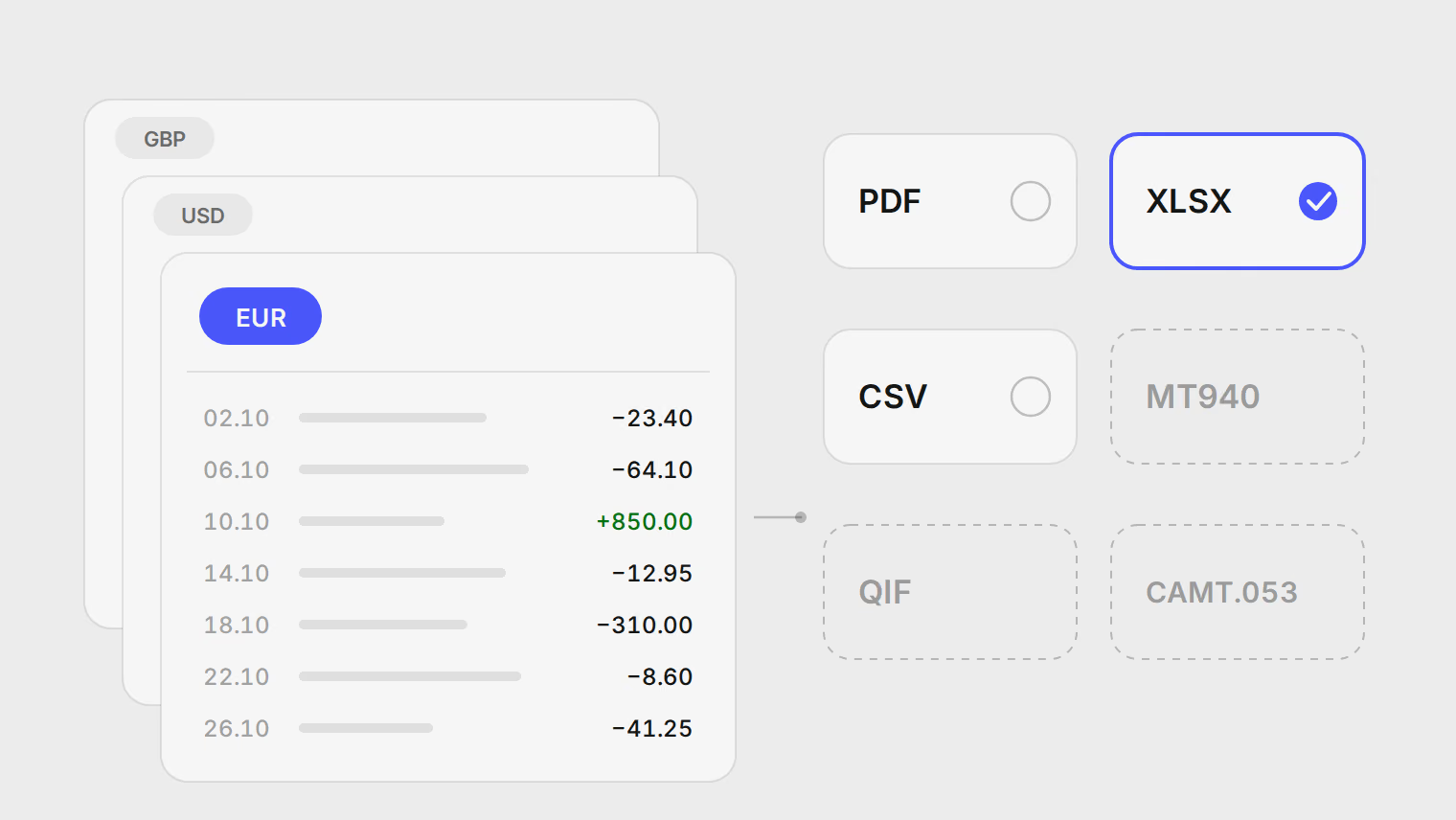
Wise gives you one statement per balance, for up to 365 days at a time. For analysis, download each balance you spend from as XLSX or CSV. Then leave out everything that only moved your own money: conversions between balances, top-ups from your bank, and transfers to your other accounts. What remains is your spending and income, still in several currencies. Convert each row at the rate for its own date and the months become comparable.
Download the statement
Wise's statement instructions give two routes:
- From one balance. Open the currency (or Jar), select the three dots in the top corner, then Statements and reports, and choose the type of document.
- From the home screen. Select your initials, then Statements and reports, then Statements.
Wise asks for your password to confirm the download. Before you start, know the limits:
- One statement covers at most 365 days. For a longer period, download one file per year.
- On the web and on Android you can select several currencies and Jars at once. The result is a zip file, either straight away or by email with a download link, depending on its size. Unzip it and check which currency and dates each file holds before you use it.
- The statement shows the transactions of your Wise currency balances. A transfer you paid for directly from another bank account is not on it; Wise points to its Transactions page for those, and the money leaving your bank shows on that bank's statement.
- When you create an accounting statement, Wise offers a box to show fees separately, and there is also a separate statement of fees.
Last checked on 21 October 2026 against Wise's statement and card spending help pages.
Which format to choose
| Format | Where to get it | Use it for |
|---|---|---|
| XLSX (Excel) | Web and app | Analysis in a spreadsheet; one row per transaction |
| CSV | Web and app | Analysis, or loading into another tool |
| Web and app | A document to show someone, such as a landlord or an embassy | |
| MT940, QIF, CAMT.053 v10 | Web only | Importing into accounting software that asks for them |
For your own analysis, take XLSX or CSV: a spreadsheet is already a table, so nothing has to be read off a page. Keep the PDF for when someone needs a document; for an official one, Wise has an option to stamp and sign it. Use the three accounting formats only if your bookkeeping software asks for one of them.
What makes a Wise statement tricky
Four things in a Wise account look like spending and are not, or hide where you do not expect them.
Conversions appear twice. Converting euros to pounds leaves the euro balance and arrives in the pound balance, so it is on two statements. It is your own money changing currency, so count neither side as spending. The cost of the conversion is the fee, plus any difference from the reference rate.
Top-ups are transfers. Money you send to Wise from your bank account arrives as a credit. It is not income, and the matching debit on your bank statement is not spending.
Jars hold your own money. Moving money into a Jar or back out does not change what you own.
A card payment can come from another balance. If you pay in a currency you do not hold enough of, Wise converts from one of your other balances, the one with the lowest conversion fee. You cannot set a preferred balance for this. Look for the payment in the statement of the balance that paid, and count it once.
Work out your spending in a spreadsheet
For a first look at a few months, a spreadsheet and an hour are enough.
- Open each balance's file and add a column with its currency, if the file does not already have one. Paste all of them into one sheet.
- Add a column called "kind" and mark each row as spending, income or transfer. Conversions, top-ups, Jar moves and payments to your own accounts elsewhere are transfers.
- Pick one currency to report in, usually the one you earn or think in. For every row in another currency, look up a reference rate for that row's date, such as the European Central Bank's, and convert. At weekends, use the latest rate before the date. A single average rate for the whole period hides real movements in the exchange rate.
- Build a pivot table of spending by month and by category.
Every conversion you miss inflates both the spending and the income for that month. Combining statements without counting money twice works through a whole month of it.
Do the same in Pulget
Pulget reads the files you download. It does not connect to Wise or to any bank.
- Create one account for each Wise balance you use, in that balance's currency. During preview every workspace is on Standard, which counts up to 3 accounts; several balances add up quickly, and pricing lists the limits.
- Upload each balance's XLSX or CSV file to its account. PDF works too, and scanned pages are read with OCR. Pulget does not read the MT940, QIF or CAMT.053 formats.
- Check the extracted rows in the Review inbox and approve them. A row the account already holds is skipped, so a statement that overlaps an earlier one does not add the same rows twice. Possible duplicates across files appear under Duplicates in the Review inbox for you to decide.
- Group each conversion between your balances as a transfer on the Transactions page. Pulget suggests transfer pairs only when both sides have the same amount in the same currency, which a conversion never has. A grouped pair counts as a transfer, not as spending.
- Read the months in Insights, by category, in your reporting currency. Each transaction is converted at the published rate for its date, or the closest earlier one, and keeps its original amount. Where you want Wise's own rate instead, enter it on the transaction. The multi-currency guide explains where the published rates come from.
Charges that repeat on a steady schedule are suggested as recurring bills, and money that arrives on a schedule as an income stream; you confirm each one. To take the reviewed rows back out, export them as CSV; converting bank statements to a clean CSV lists what the file contains.
If Wise is one of several accounts you use abroad, the walkthrough for Revolut, Wise and a local bank puts them side by side. The Revolut statement export covers the other common multi-currency account.
What this does not do
- It does not show live balances. It knows the statements you upload, up to the last date in each.
- It does not file anything for you, give tax advice or produce an official statement. For a signed statement, use Wise's own option.
- It does not move money or convert currency. The conversions in your reports compare amounts; they are not quotes.
Start with one balance
Download the balance you spend from most as XLSX, upload it, free during preview, and check its rows before adding the next one.
Sources
Related reading
About the author
Hikmat Samadov, Founder. Hikmat builds Pulget, a spending tracker that reads the bank statements you upload instead of connecting to your bank.