The short answer
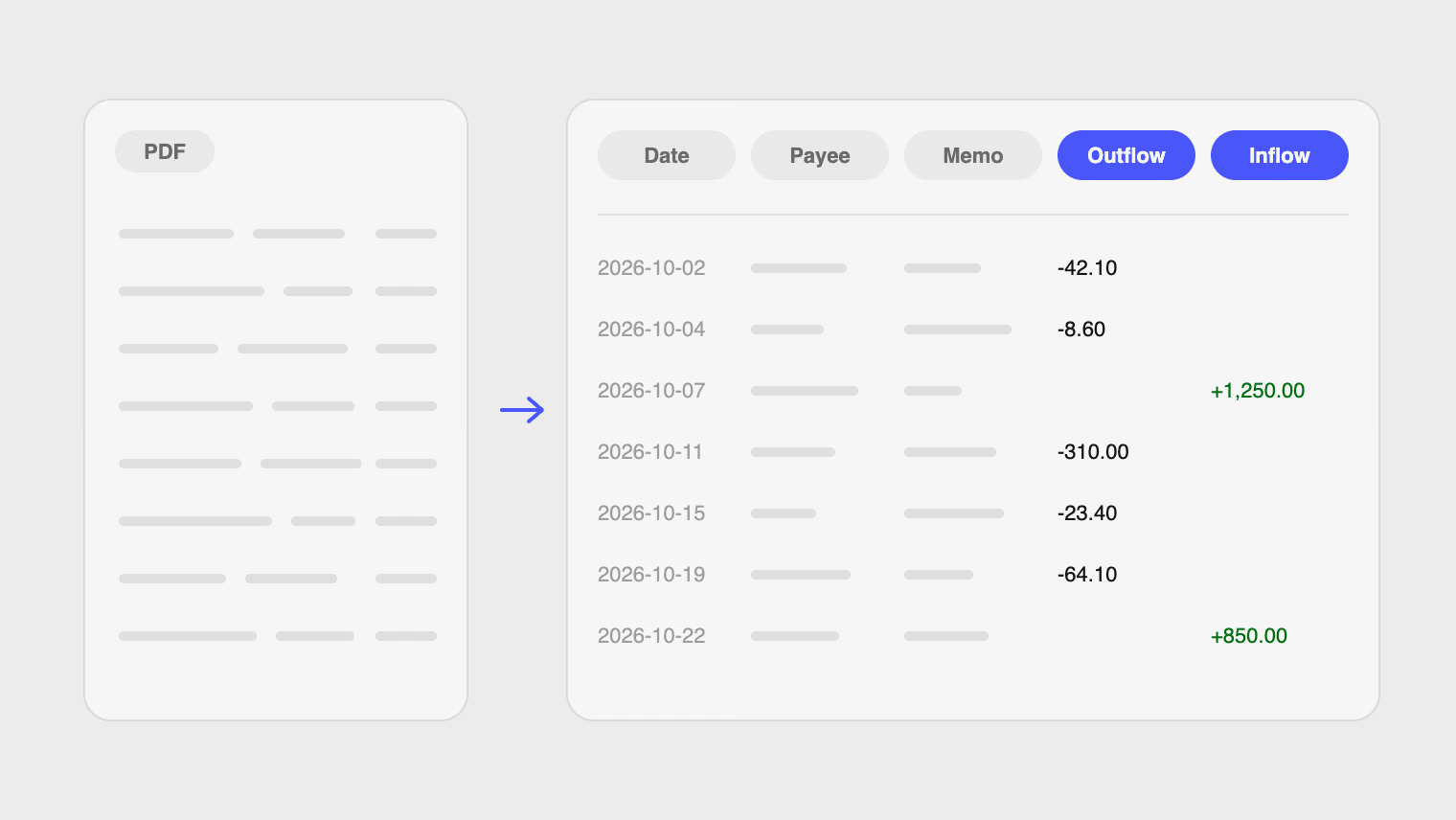
YNAB's file-based import does not read PDF. Its help page lists CSV (the recommended format), QFX, OFX and QIF. If your bank gives you only a PDF, you need a CSV in between. Pulget reads the PDF, scans included, lets you check every row, and exports a CSV for one account. You then drop that file into YNAB and match its columns. YNAB does not import categories, so you assign those after the import.
Why YNAB cannot read the PDF
A PDF places text on a page. It has no fields for date, payee or amount, and a scanned one has no text at all. YNAB's file-based import guide names the formats it accepts: CSV, QFX and OFX (you can import several at once), and QIF. PDF is not among them.
Two more limits matter before you start:
- YNAB does not import categories or split transactions this way. You categorize in YNAB afterwards.
- YNAB does not recommend importing transactions older than one year with file-based import.
Last checked on 18 November 2026 against YNAB's file-based import, CSV and multiple currencies help pages.
Get the rows out of the PDF with Pulget
Pulget reads files you download. It does not connect to your bank and never asks for a bank login.
- Create one account in Pulget for the bank account, in its own currency.
- Upload the statement to that account. PDF, scanned PDF, CSV, XLS, XLSX and DOCX all work. Photos and screenshots do not.
- In the import's review step, check the extracted rows against the page, correct anything read wrongly, and approve.
- Open the account's menu and choose Export CSV. That file holds this account's transactions only.
- To export only some dates, filter the Transactions page by that account and those dates instead, then choose Export CSV from the page's overflow menu.
The file is UTF-8 CSV. Dates are ISO (2026-10-22), and the Amount column is signed, with money out negative and a dot as the decimal separator. Converting bank statements to a clean CSV lists every column.
Import the file into YNAB
On a computer, download the file, open YNAB and drag the file anywhere into it. The Import Transactions pop-up appears. YNAB's help also describes an iPad route, through Split View in Safari at app.ynab.com, dragging the file from the Files app. Its guide does not cover phones.
In the pop-up, verify the account at the top. Then YNAB matches each CSV column to a field, and a dropdown lets you fix any match. You can include or exclude transactions dated before the account's start date. Three options sit below: "No header row", "Swap Inflow and Outflow" and "Remember setting for this account" (on by default).
YNAB's help also says you no longer need to format a CSV before uploading, and that one Amount column can serve as both Inflow and Outflow, with YNAB reading positive and negative values. The Amount column in the Pulget export is one signed column, so it fits.
Match the columns in YNAB
| YNAB field | Pulget column | Note |
|---|---|---|
| Date | Date | ISO format, YYYY-MM-DD |
| Payee | Merchant | Cleaned names. Use Description instead if you want the raw bank text |
| Memo | Category | YNAB will not import categories, so this lets you see Pulget's while you categorize |
| Inflow | Amount | Signed values, money out negative |
| Outflow | Amount | The same column, per YNAB's help |
Leave the other columns unmatched. Because money out is already negative, do not tick "Swap Inflow and Outflow". If your outflows arrive as inflows, that is the option to check. If you prefer the memo to carry the bank's wording, map Memo to Description instead.
Accounts in another currency
Each YNAB plan has one currency. For accounts in a second currency, YNAB's multiple currencies guide recommends a separate plan for each currency. If you follow that, import the Amount column into the plan that matches the account's currency.
If you want a euro or lira account inside a dollar plan instead, the importer cannot convert it: it takes the numbers as they are. Pulget has a Reporting amount column for this. Each row is converted into your reporting currency at the published rate for its date, or the closest earlier one, and the cell stays blank until a rate exists. The original Amount and Currency stay in the file too.
- Export the CSV, then scan the Reporting amount column for blank cells.
- For any blank row, enter your own rate on that transaction in Pulget, and export again.
- In YNAB, map Reporting amount to Inflow and Outflow instead of Amount.
The multi-currency guide explains where the published rates come from and how your own rate overrides them.
Overlapping files and duplicates
Statements often overlap. A row the account already holds is skipped at import, and possible duplicates across files appear under Duplicates in the Review inbox, where you merge them or keep both.
YNAB has its own rules, and they work on dates and amounts:
- It matches an imported transaction with one you entered by hand when the amounts are exactly the same and the dates are within ten days.
- It skips an imported transaction with the exact same date and amount as one already imported.
- It does not import transactions dated more than three days before your last reconciled transaction.
- A transaction you delete after importing cannot be imported again into that account.
The second rule can remove a real second purchase, such as two identical coffees on one day. The safest habit is to export only the dates YNAB does not hold yet. Use the date filter on the Transactions page for that.
When to skip Pulget
- Your bank offers CSV, OFX or QFX. Import that straight into YNAB.
- YNAB's direct import already works for your bank. Keep using it. If it does not, banks YNAB cannot link is a separate problem with its own options.
What this route does not do: Pulget does not push anything to YNAB or keep it updated, so each new statement means an export and a drag. It exports CSV only, not OFX or QIF. It is web only, in desktop and mobile browsers. The same route works for other budgeting apps that import CSV.
Start with one statement
Upload your most recent PDF, free during preview with no card, check its rows, and import the CSV into YNAB. If it looks right, do the older months. See pricing for the limits after preview.
Sources
Related reading
About the author
Hikmat Samadov, Founder. Hikmat builds Pulget, a spending tracker that reads the bank statements you upload instead of connecting to your bank.